
Woo Casino mobile: browse, save and troubleshoot
Woo Casino mobile access starts in a browser; a home-screen icon is optional. You can browse directly, save a shortcut, or use the Woo Casino overview for the wider site.
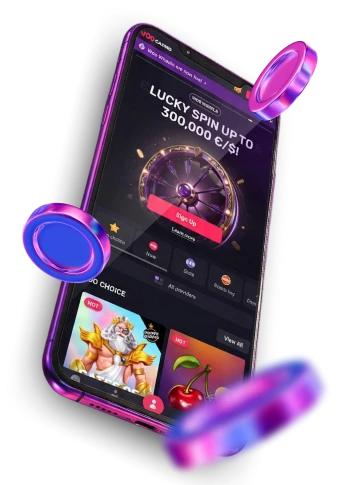
Start in the browser and choose your route
Open the intended Woo page in your mobile browser. You can use it directly or save a home-screen shortcut if you want a quicker launch point. Check that the icon returns to the right page; if the option is hard to find, consult your browser’s help.
A bookmark opens from the browser’s saved items; an icon launches from the device’s home screen. Choose based on how you prefer to navigate. If you use more than one device, save the page on each device you want to use; a shortcut on a phone is not automatically available on a tablet.

Troubleshoot a page that looks different
On a small screen, page layout and browser controls may differ. If a page looks wrong, confirm the address and let it finish loading, then refresh once. For a missing browser control, use that browser’s help rather than an unofficial download or instructions for another device.
If a page fails to load, check your connection on another trusted site, then close and reopen the browser. Avoid clearing saved data as a first step because it can remove preferences or sign you out. If the problem persists, use the browser or device maker’s normal support guidance.
Before contacting support, note whether the problem affects one page or the whole site, the browser and device you used, and any exact error message. Include whether the same problem occurs when you open the page directly in the browser and through the saved shortcut. That helps separate a stale shortcut from a page-loading problem. A screenshot can help describe a layout problem, but crop out balances, account details, payment information and codes before sharing it through the service’s published support channel. This gives support something specific to investigate without asking you to change account credentials or submit another transaction.
Understand the shortcut and the session
A home-screen icon opens a saved page; it does not keep every browser session active. If the service asks you to sign in again, use the account route on the service address you trust. The Terms allow one personal player account per individual, so do not create another account to work around a session prompt.
On a shared device, sign out when finished and avoid saving credentials where another person can use them. Keep account recovery separate from shortcut troubleshooting; use only a recovery path shown on the service address you trust.
Keep offers and account tasks separate
A mobile shortcut does not apply a bonus code or activate an offer. If you review a promotion, check its deposit stage, minimum, code timing, wagering and maximum-bet conditions, and confirm it applies to your account. Signing in is also separate from withdrawal verification: the Terms call for photo ID and proof of address, with additional documents possible, before a request is cleared.
Choose a deposit limit for money added, a loss limit for losses, or a wager limit for amounts staked; the policy allows daily, weekly or monthly periods. Request it through the support email published by the service and confirm when it starts.
FAQ
Can I use Woo Casino mobile without an icon?
Yes. Open Woo in your mobile browser; adding a home-screen icon is optional and only changes how you reopen the page.
Does a shortcut keep me signed in?
Not necessarily. An icon opens a saved page; if a fresh sign-in prompt appears, return through the account route you trust.
What should I try if the page will not load?
Check your connection on a trusted site, confirm the address and reopen the browser. If it still fails, contact the browser or device support channel.